
Why Use Portfolios?
- Alerts — automated notifications for rating changes, upgrades, or downgrades
- Download Data — export portfolio data including historical snapshots
- Quick Reference — maintain a named list of entities for fast searching
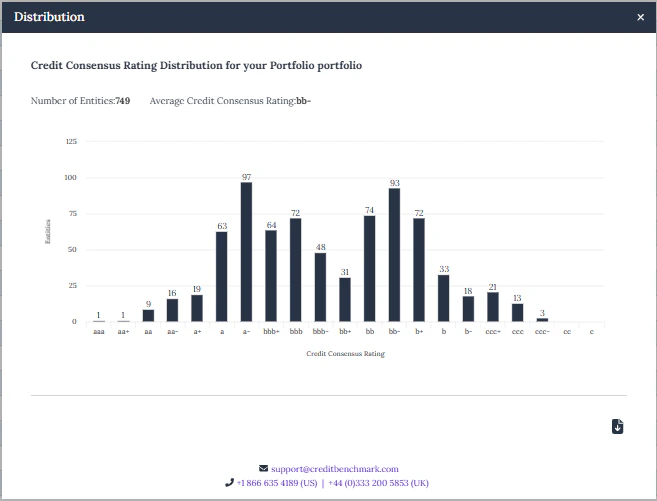
- Rating Distribution — visual breakdown of your portfolio’s rating composition
- PortfolioLens — customisable analytical reports comparing your ratings against consensus
Portfolio Setup
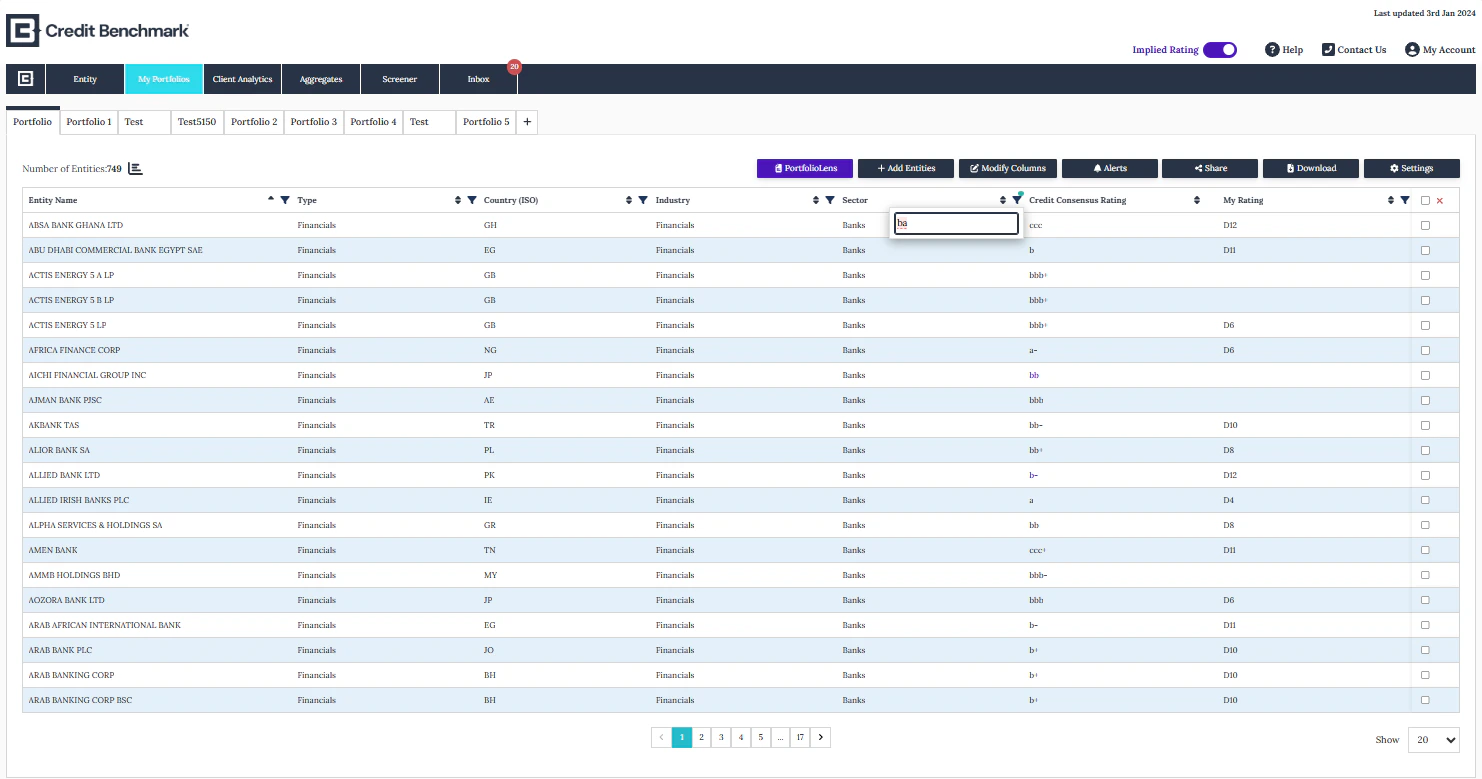
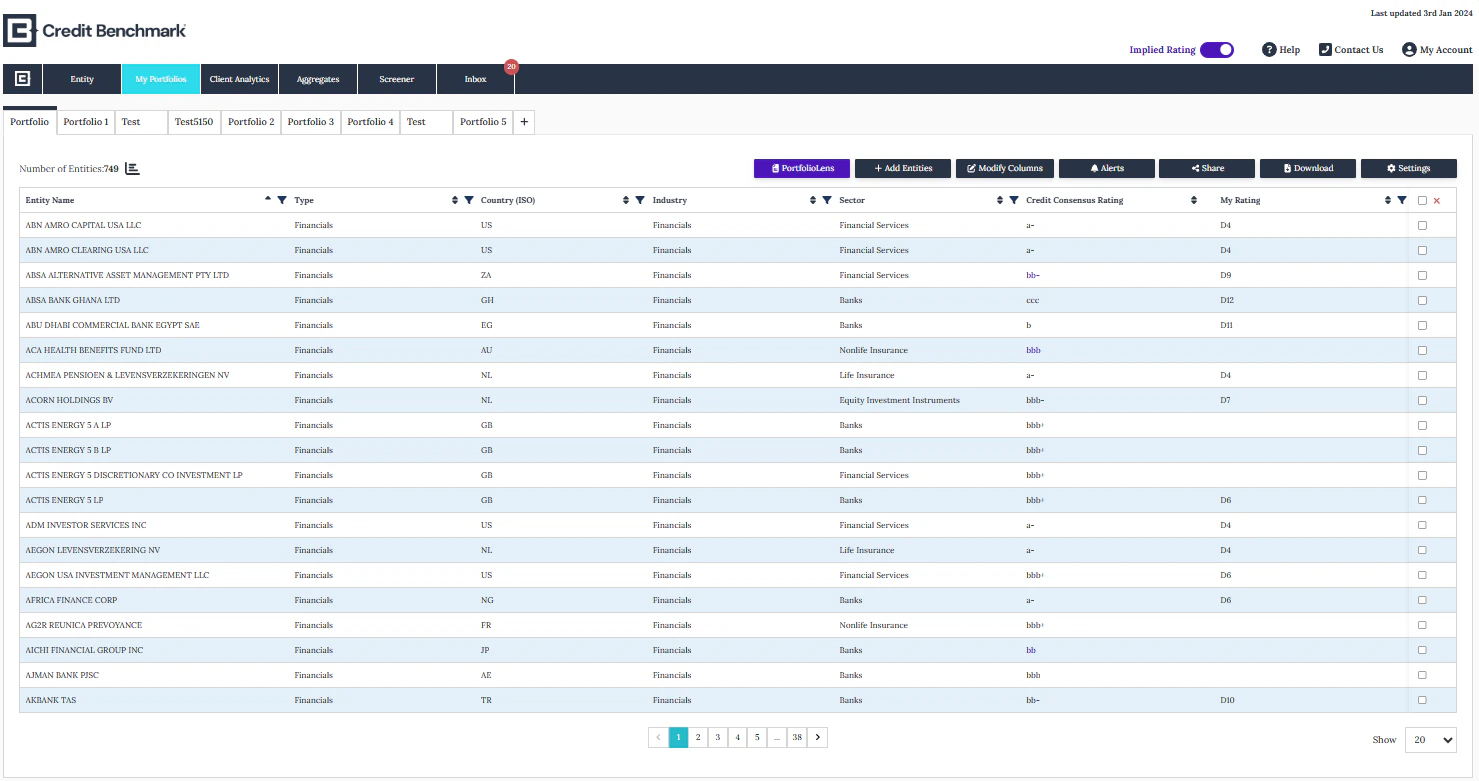
Portfolio View
Portfolio View
- Switch between portfolios using the tabs at the top
- Create a new portfolio with the + button
- Use the action buttons to add entities, modify columns, share, and set alerts
- Remove entities by selecting them and clicking the cross icon
- Drag column headers to rearrange the table layout
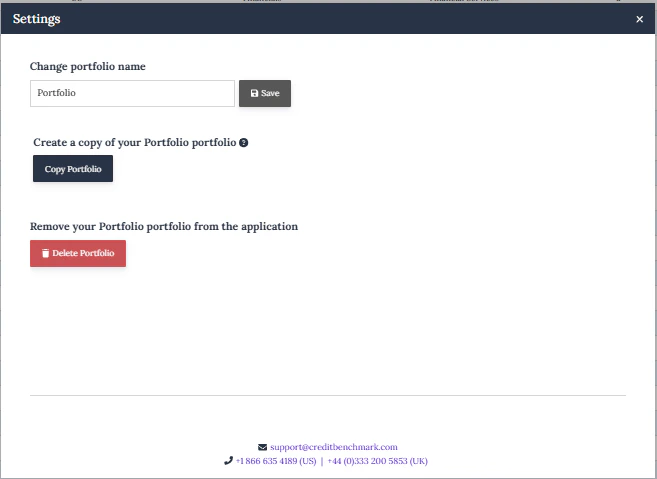
Creating & Editing a Portfolio
Creating & Editing a Portfolio
- Click + to create a new portfolio
- Click Settings to rename, copy, or delete a portfolio
- Copy creates a new portfolio with the same entity list and alert settings — changes to the original won’t affect the copy
Adding Entities
Adding Entities
Click Add Entities to upload by: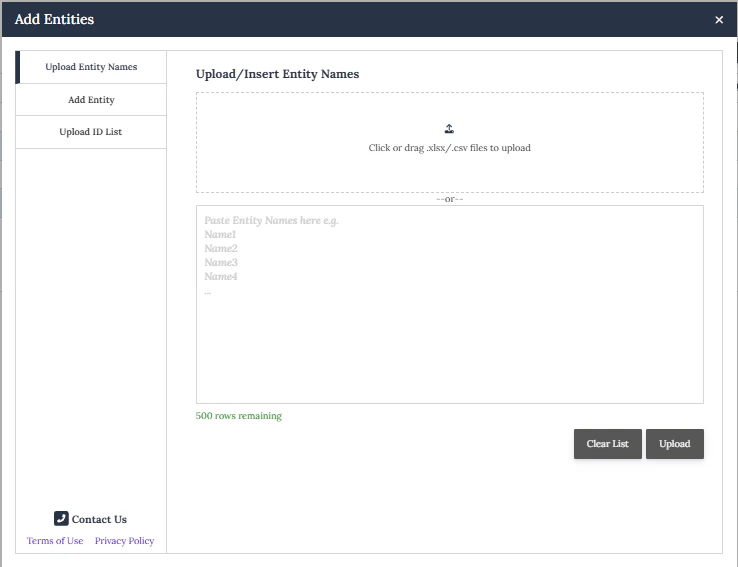
- Internal Firm ID
- CBID
- Entity Name
- LEI
Upload by Entity Name
Upload by Entity Name
Name matching uses a proprietary ML model to match your uploaded list against CB reference data.
1
Upload Your List
Paste entity names into the free text field or upload a CSV/XLSX file (entity names only). Click Upload.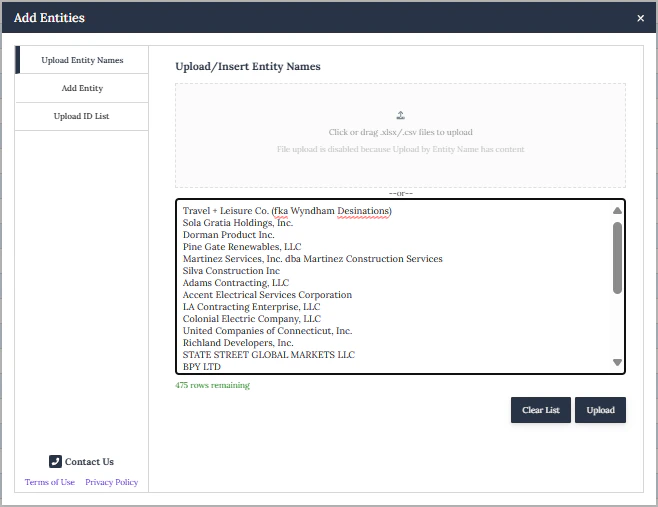
2
Review Matches
Review matched and unmatched entities. CB will flag any duplicates.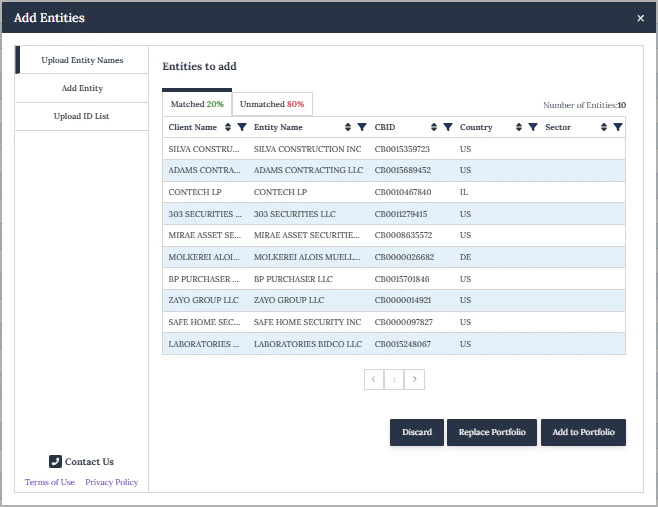
- Matched — click Add to Portfolio or Replace Portfolio
- Unmatched — click Send to Support for additional manual review
Portfolio Features
Configure Columns
Configure Columns
Click Modify Columns to add, remove, or reorder columns. Your configuration is saved to your user profile. Column selection also determines what’s included in data exports.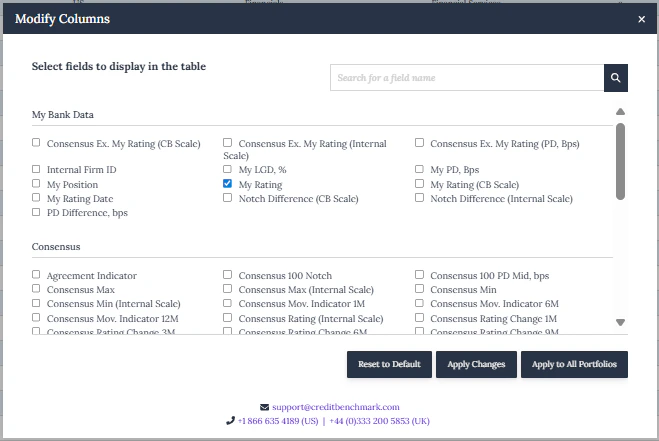
Set Alerts
Set Alerts
Click Alerts to configure email notifications for rating changes, upgrades, or downgrades. Choose weekly or monthly frequency.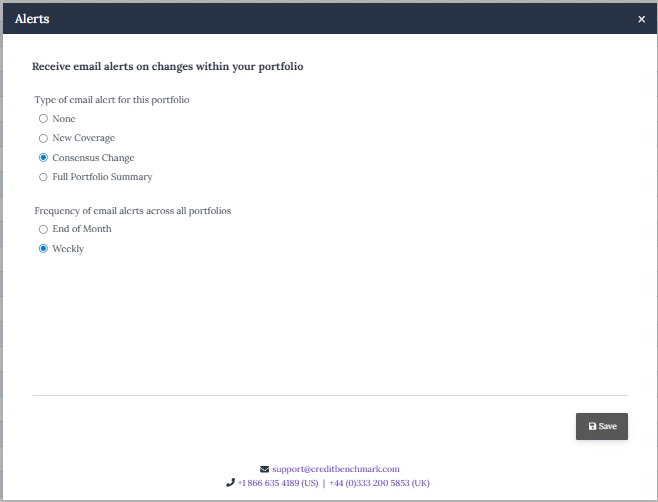
Click Share to share with colleagues as a static copy (snapshot) or dynamic (live, updates automatically for all users).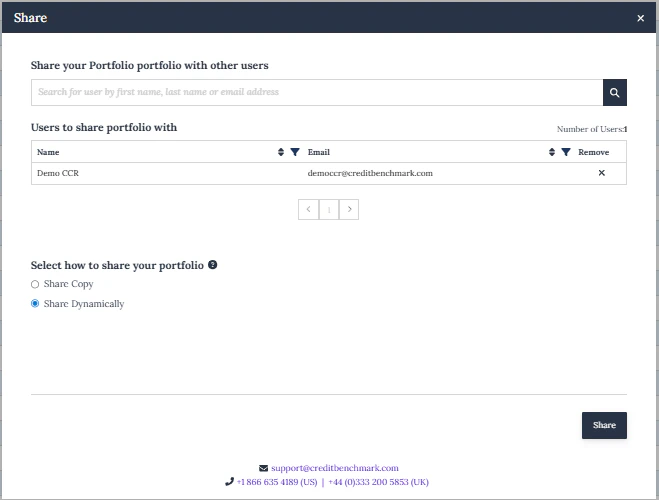
Export Data
Export Data
Click Download to export the current portfolio or historical data as Excel or CSV.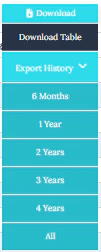
PortfolioLens Reports
PortfolioLens Reports
Click PortfolioLens to generate customisable reports: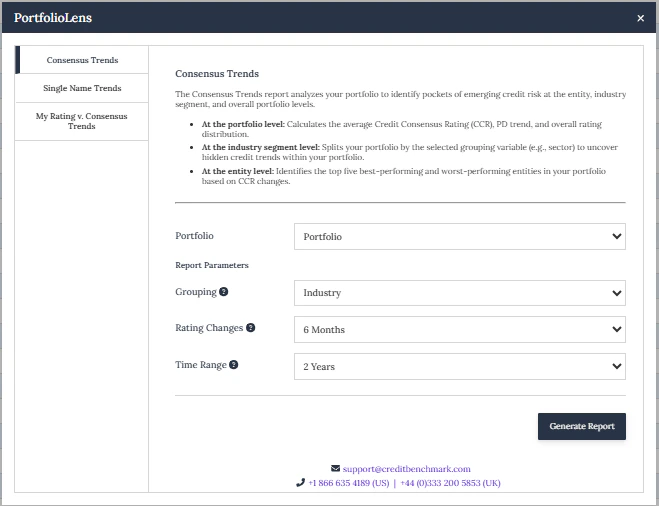
- My Rating vs Consensus Trends — compare your ratings against consensus over time (bank contributors)
- Consensus Trends — consensus rating trends for your portfolio
- Single Name Trends — individual entity rating analysis
Rating Distribution
Rating Distribution
Click the Distribution icon to view how entities in your portfolio are spread across rating bands. Export as JPEG or Excel.