

Signing In
1
Enter Credentials
Enter your username and password on the Sign In page.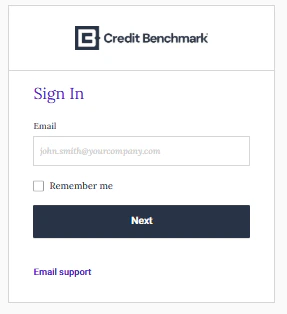
2
Two-Factor Authentication
If 2FA is enabled, enter the verification code from your smartphone or email. If you don’t receive the code after 30 seconds, click Resend Code.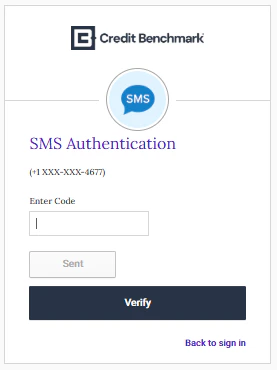
Resetting Your Password
1
Request Reset
Click Forgot Password? on the login page.
2
Enter Username
Enter your assigned username. A reset link will be sent to your email. If prompted, answer your security question.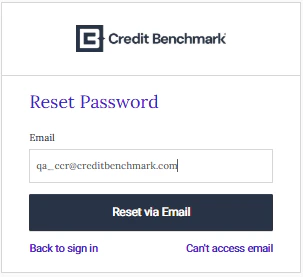
3
Set New Password
Follow the link to set a new password. If you have 2FA enabled, you’ll also need to enter your 2FA code.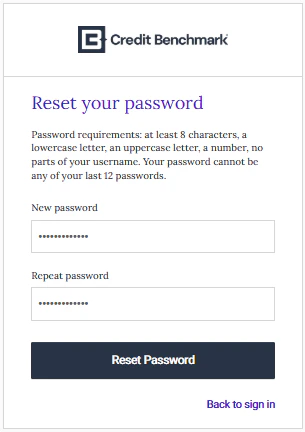
Setting Up Two-Factor Authentication
1
Activate Account
Click Activate Credit Benchmark Account in your activation email. Set your password and choose a security question.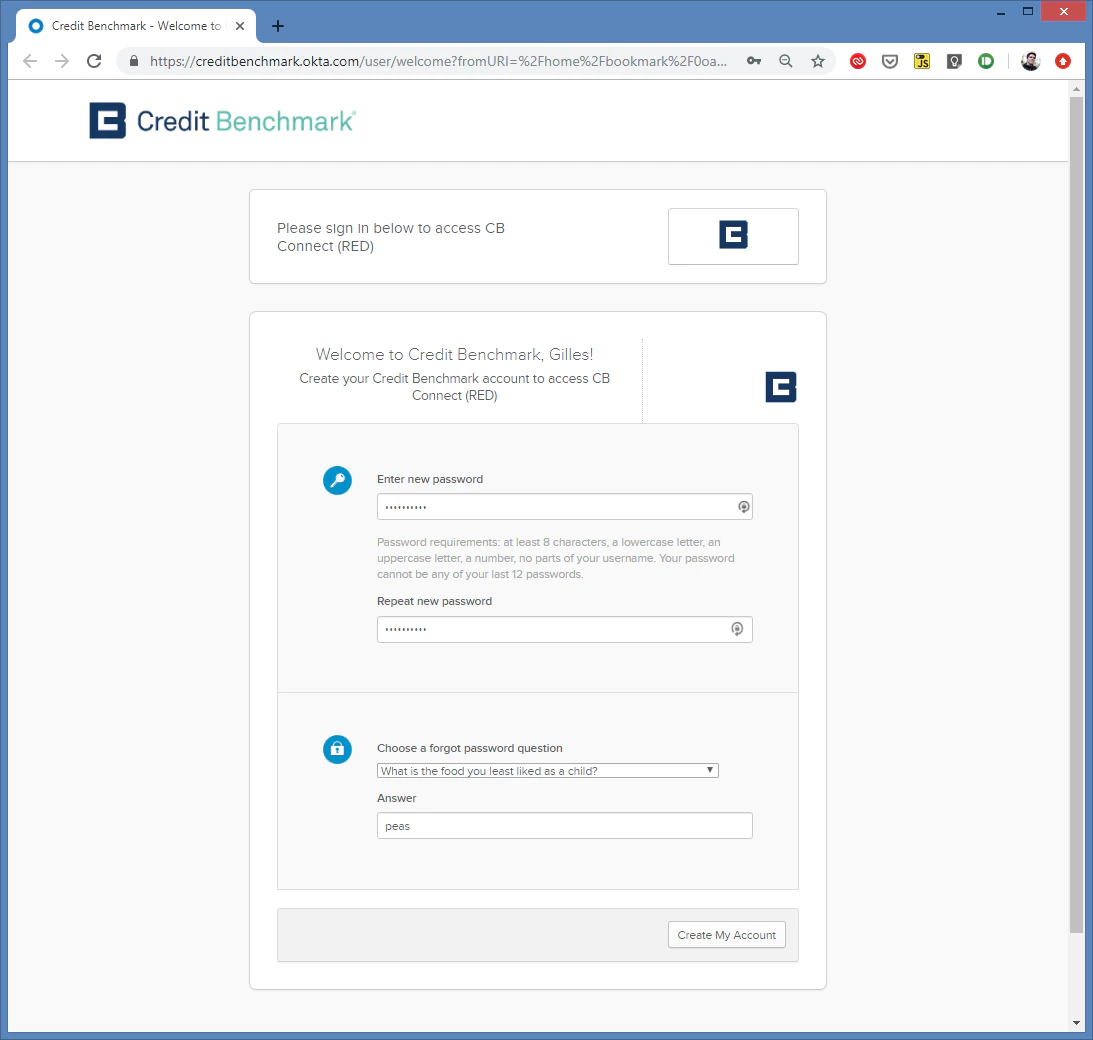
2
Choose Authentication Method
After clicking Create My Account, select your preferred 2FA method. SMS is recommended.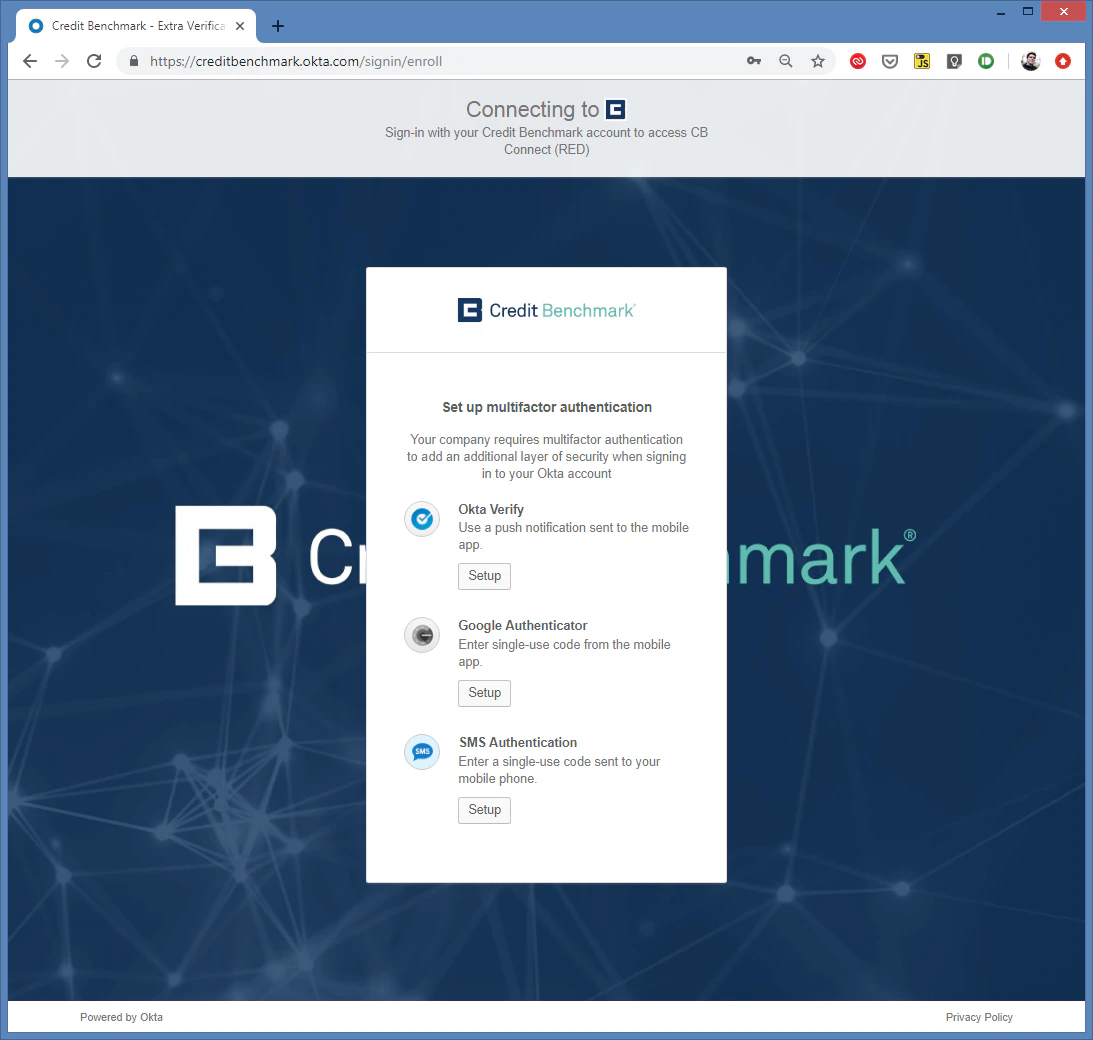
3
Enter Phone Number
Select your country, enter your phone number, and click Send.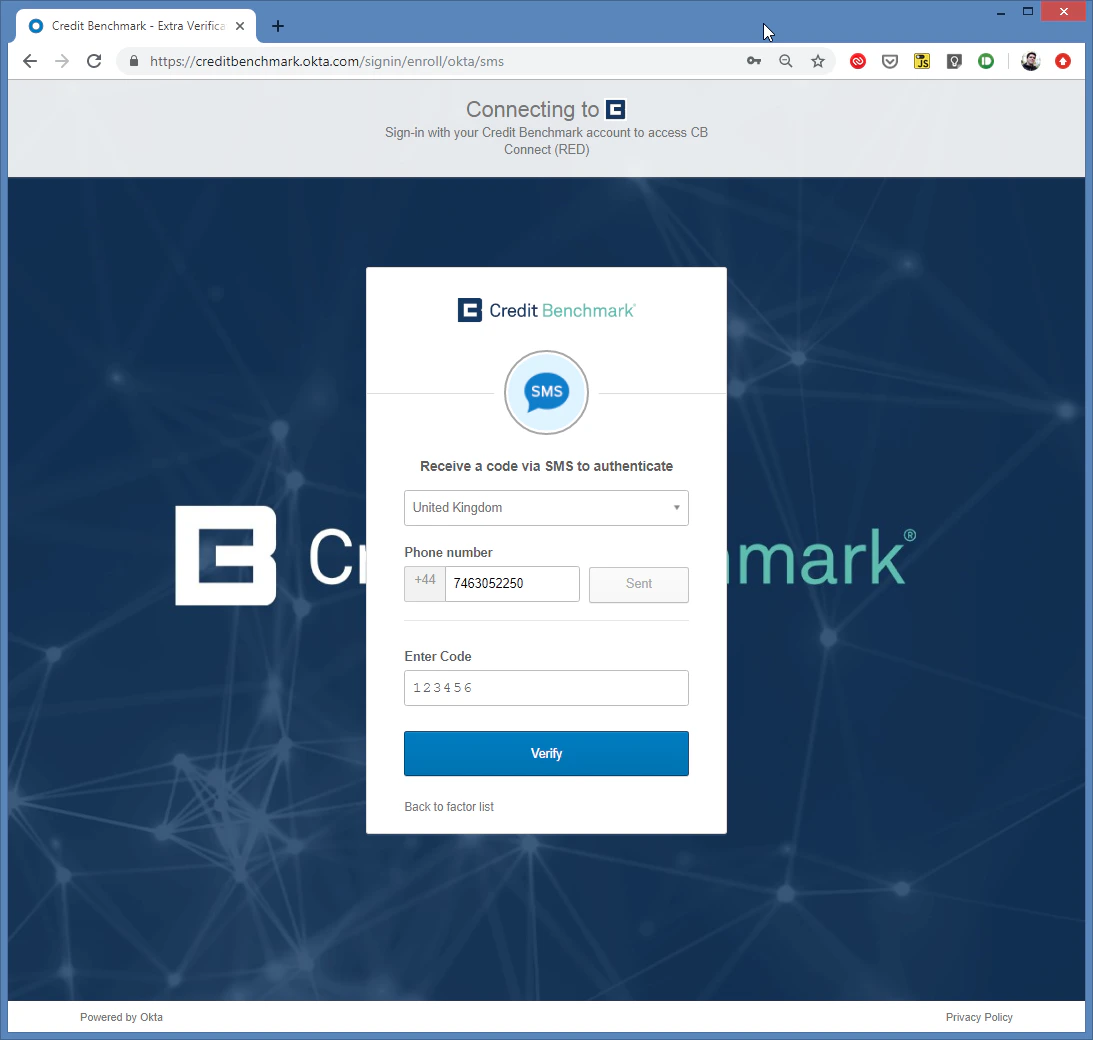
4
Verify Code
Enter the SMS verification code and click Verify. If no code arrives after 30 seconds, click Send code again. Still nothing? Contact support@creditbenchmark.com.
5
Complete Setup
You’ll be redirected to the login page. If not, navigate to webapp.creditbenchmark.com.