> ## Documentation Index
> Fetch the complete documentation index at: https://docs.creditbenchmark.com/llms.txt
> Use this file to discover all available pages before exploring further.
# CB Web App Login
> Sign-in and password reset guidance for the Credit Benchmark Web App.
Access the CB Web App at [webapp.creditbenchmark.com](https://webapp.creditbenchmark.com/) on any up-to-date browser.
## Signing In
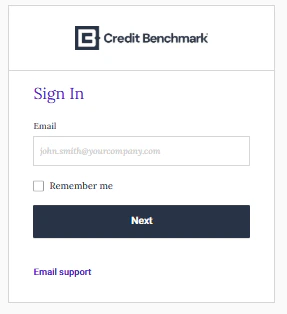
Enter your username and password on the Sign In page.
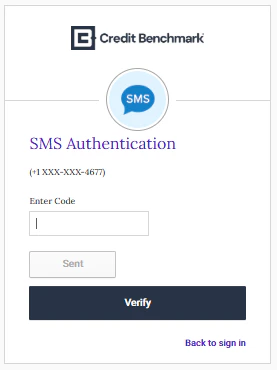
 If 2FA is enabled, enter the verification code from your smartphone or email. If you don't receive the code after 30 seconds, click **Resend Code**.
 If you have trouble signing in, contact [support@creditbenchmark.com](mailto:support@creditbenchmark.com).
## Resetting Your Password
Click **Forgot Password?** on the login page.
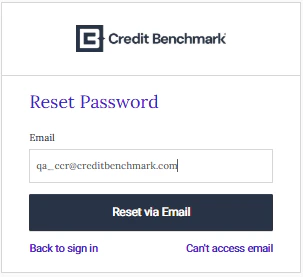
Enter your assigned username. A reset link will be sent to your email. If prompted, answer your security question.
If you have trouble signing in, contact [support@creditbenchmark.com](mailto:support@creditbenchmark.com).
## Resetting Your Password
Click **Forgot Password?** on the login page.
Enter your assigned username. A reset link will be sent to your email. If prompted, answer your security question.
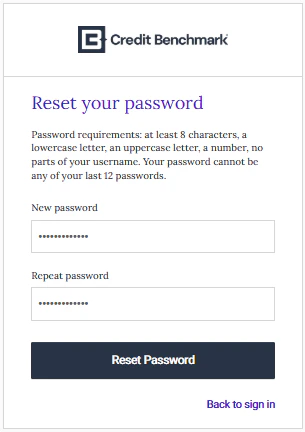
 Follow the link to set a new password. If you have 2FA enabled, you'll also need to enter your 2FA code.
 Once complete you'll be redirected to the login page. If not, navigate back to [webapp.creditbenchmark.com](https://webapp.creditbenchmark.com/).
## Setting Up Two-Factor Authentication
Click **Activate Credit Benchmark Account** in your activation email. Set your password and choose a security question.
Once complete you'll be redirected to the login page. If not, navigate back to [webapp.creditbenchmark.com](https://webapp.creditbenchmark.com/).
## Setting Up Two-Factor Authentication
Click **Activate Credit Benchmark Account** in your activation email. Set your password and choose a security question.
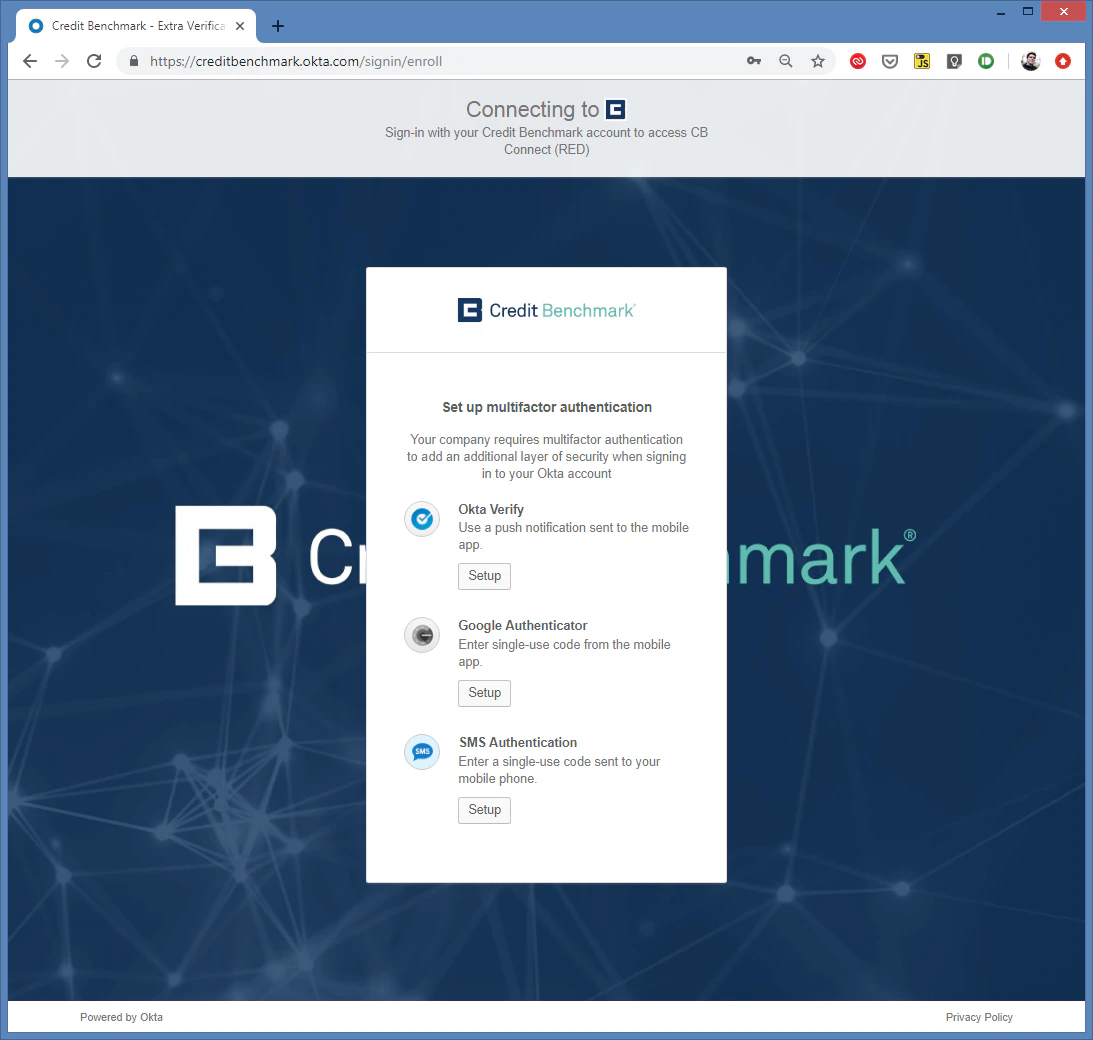
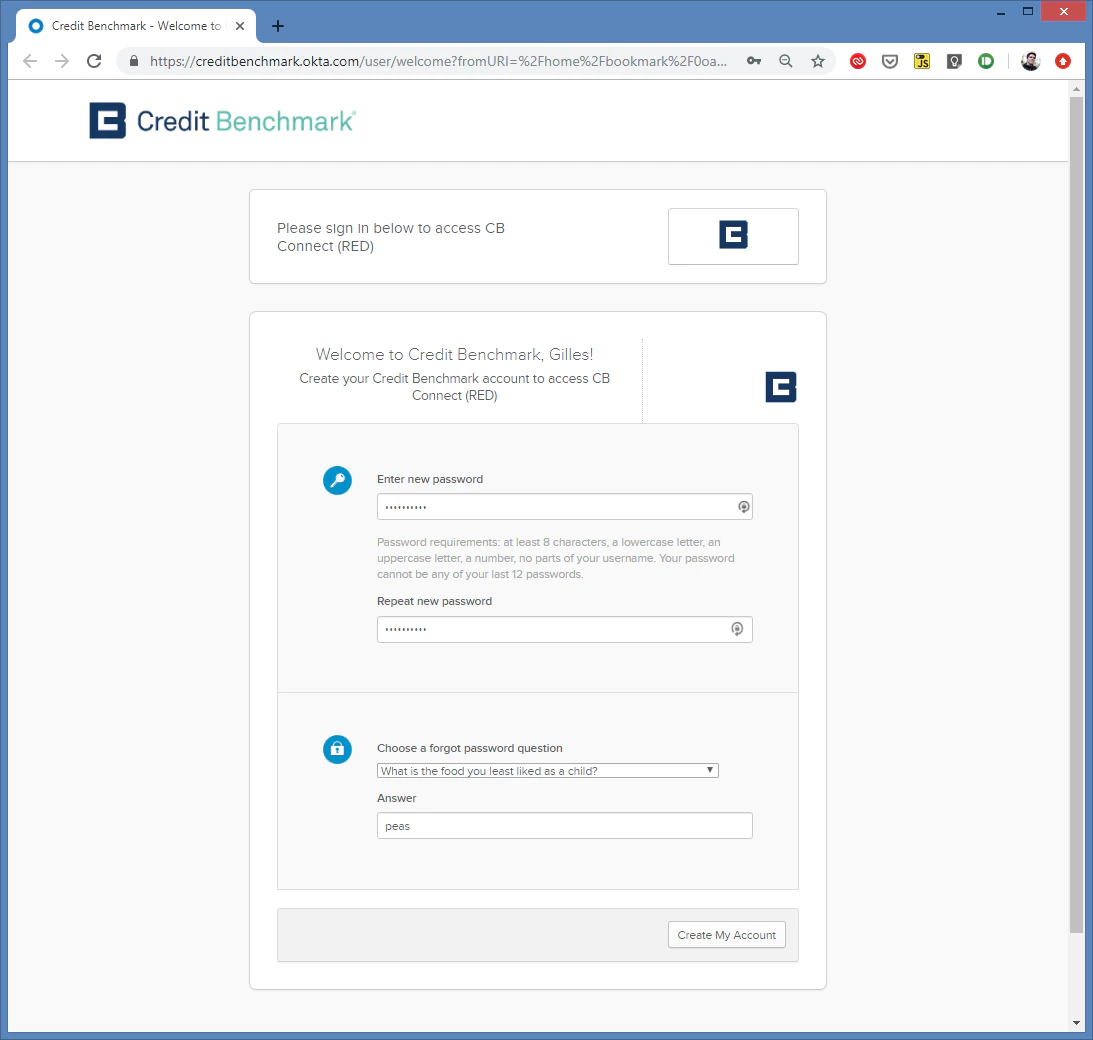 After clicking **Create My Account**, select your preferred 2FA method. SMS is recommended.
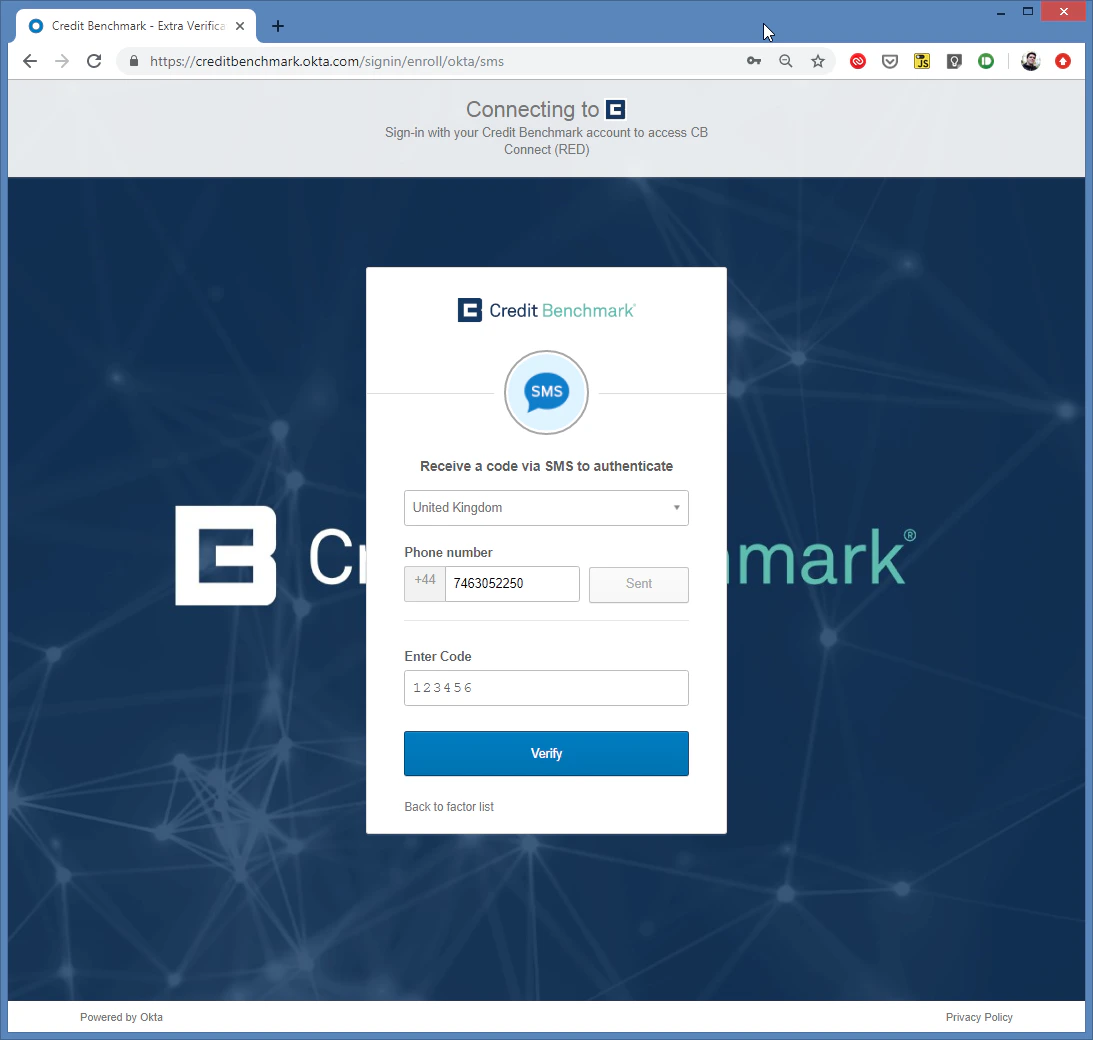
 Select your country, enter your phone number, and click **Send**.
 Enter the SMS verification code and click **Verify**. If no code arrives after 30 seconds, click **Send code** again. Still nothing? Contact [support@creditbenchmark.com](mailto:support@creditbenchmark.com).
You'll be redirected to the login page. If not, navigate to [webapp.creditbenchmark.com](https://webapp.creditbenchmark.com/).
Enter the SMS verification code and click **Verify**. If no code arrives after 30 seconds, click **Send code** again. Still nothing? Contact [support@creditbenchmark.com](mailto:support@creditbenchmark.com).
You'll be redirected to the login page. If not, navigate to [webapp.creditbenchmark.com](https://webapp.creditbenchmark.com/).